
-
1
Create an account
You should create your Candidate account
-
2
Fill your profile details
You can fill your profile details to create resume
-
3
Download your resume
You can download your free CV
We have the dedicated guide about resume builder guide for desktop users. So, refer our following guide and create your resume now.
Resume Builder Guide for Desktop Users
Follow the below steps that will help you how to easily create your Resume in Gulf Login for Desktop users.
Step 1 : Click a Register button to create your free Candidate Account in our Gulf Login home page.
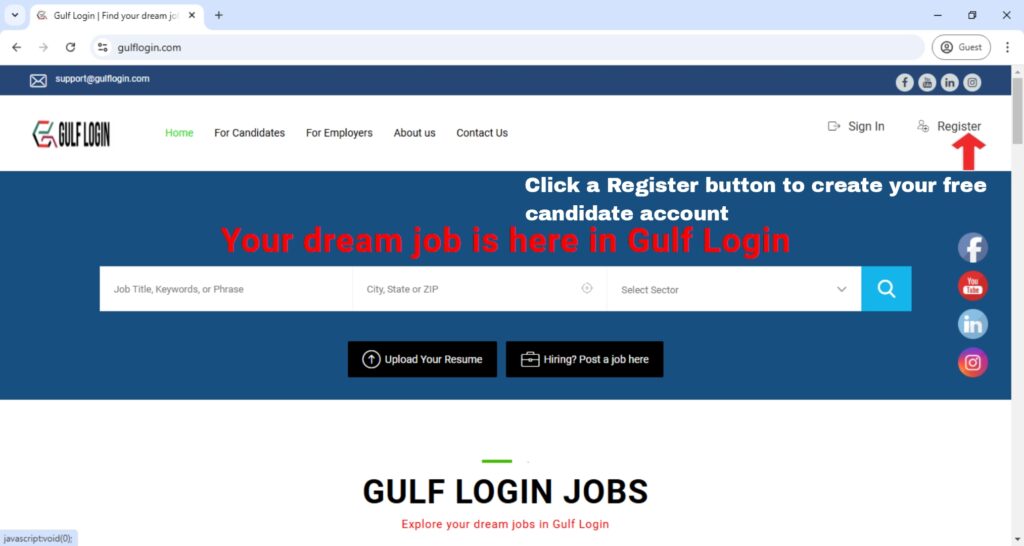
After you click a Register button, A registration form for Candidate / Employer will pop up on your screen.
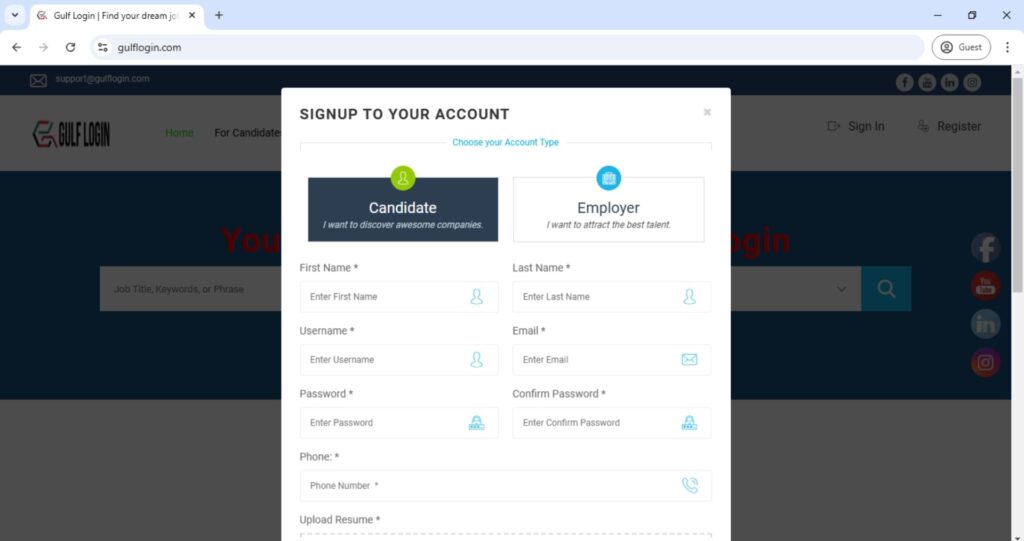
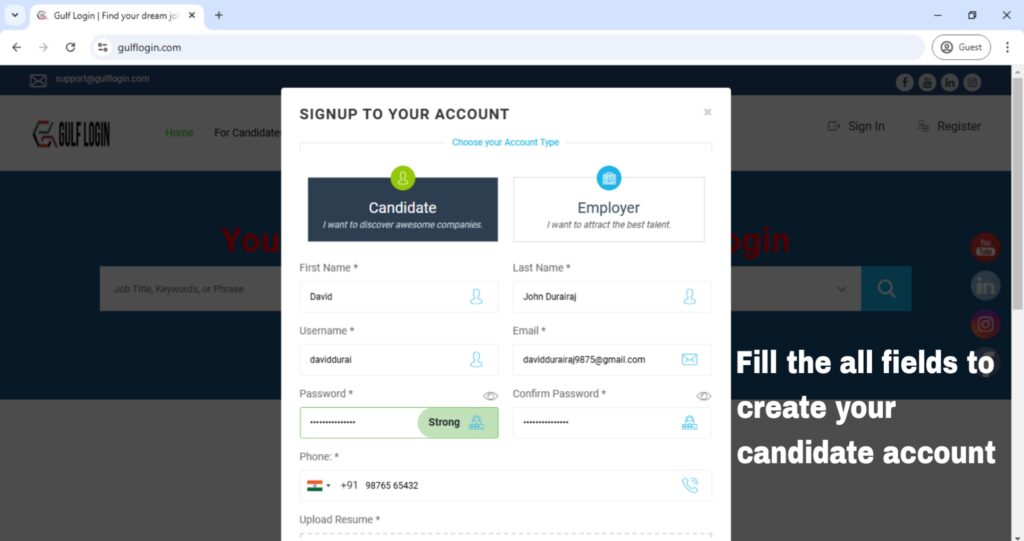
After you click a Register button, you should fill all the fields of candidate Sign Up form to create your account.
Step 2 : To fill this all required fields in a Candidate Sign Up form.
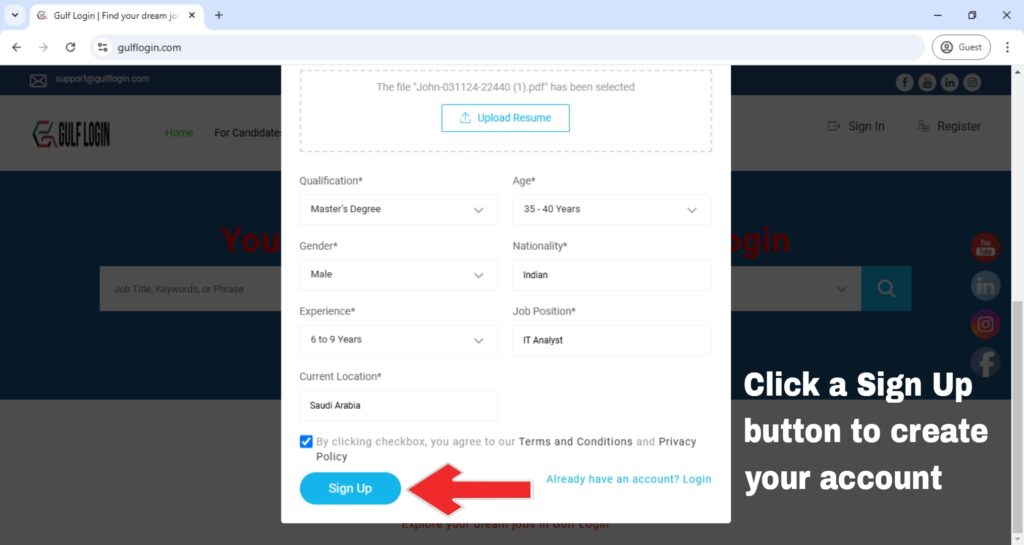
After you fill the fields such as First name, Last Name, Username, Email, Password, Phone Number, Upload Resume, Qualification, Age, Gender, Nationality, Experience, Job Position, Current Location and by accept the Terms and Privacy Policy. Then, you click a Sign up button to create your free Candidate account.
Step 3 : Click a Sign up button to create your account.
After you click a Sign Up button, Then you are redirecting to your candidate dashboard.
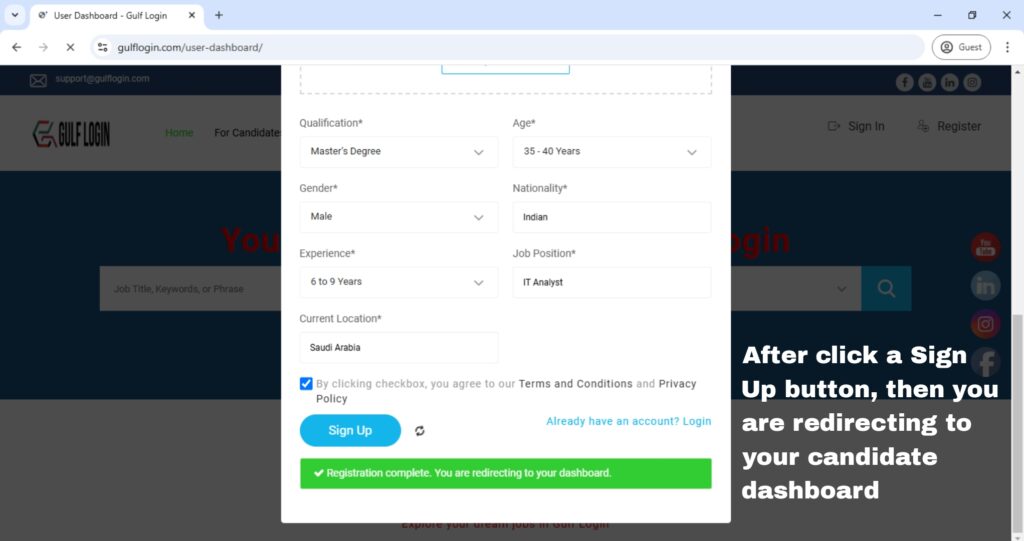
After you are redirecting to your candidate dashboard page, Then scroll down to view your candidate dashboard menu.
Step 4 : Scroll down to view your candidate dashboard menu.
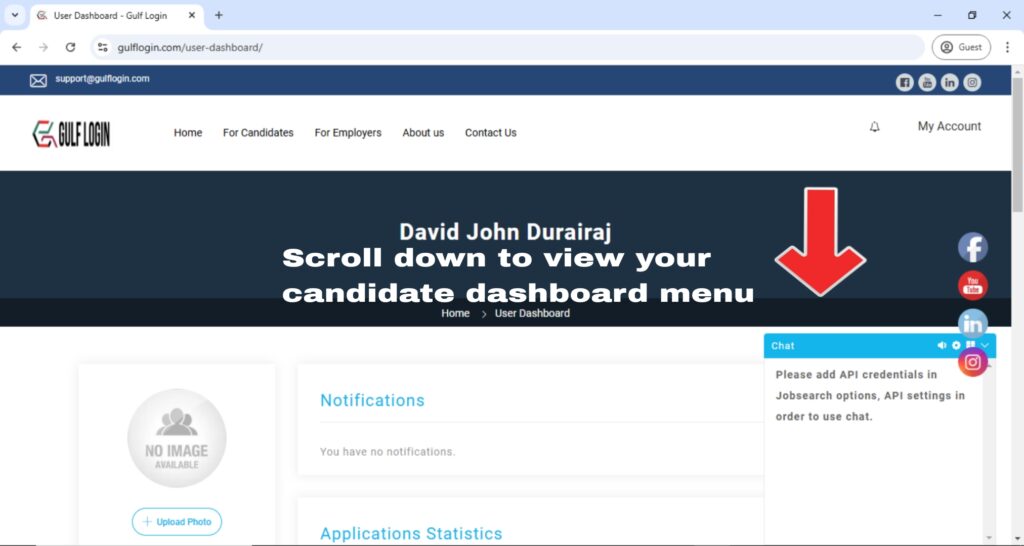
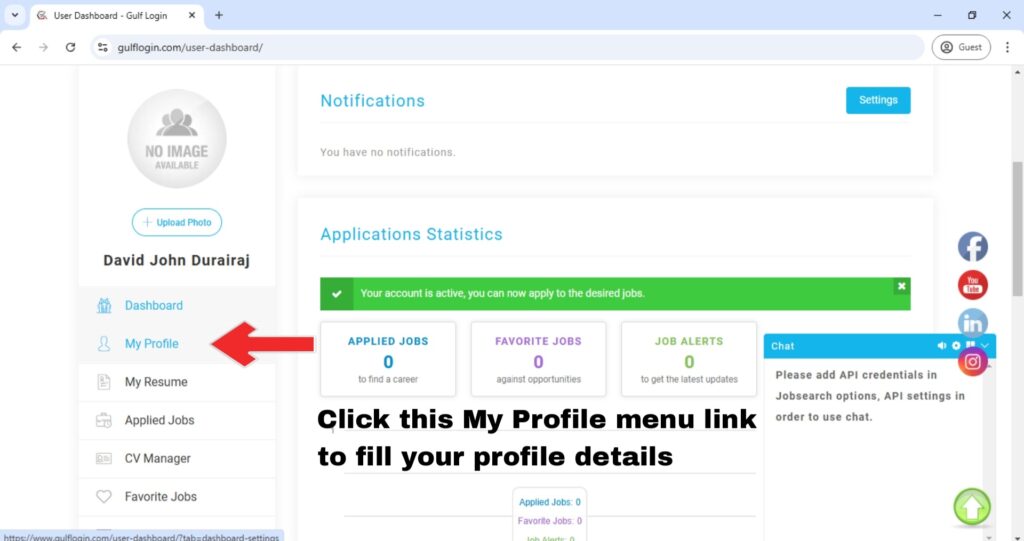
After you scroll down to view your candidate dashboard menu, then click the My Profile menu link to fill your profile details.
Step 5 : Click the My Profile menu link to fill your profile details.
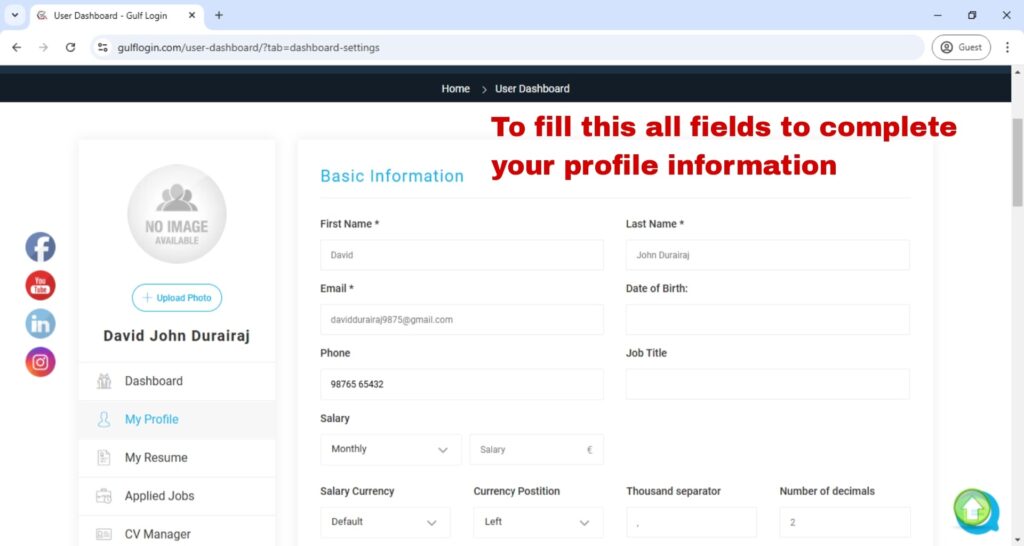
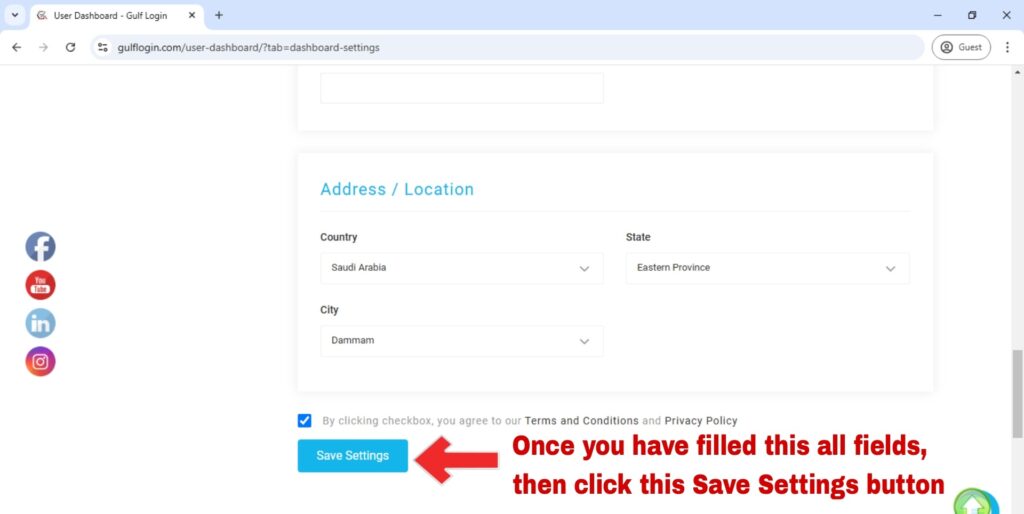
After you click the My Profile menu link, then you should fill this all fields to complete your profile information.
After you filled this all fields, then click this Save Settings button to save your profile information.
Step 6 : Click this Save Settings button to save your profile information.
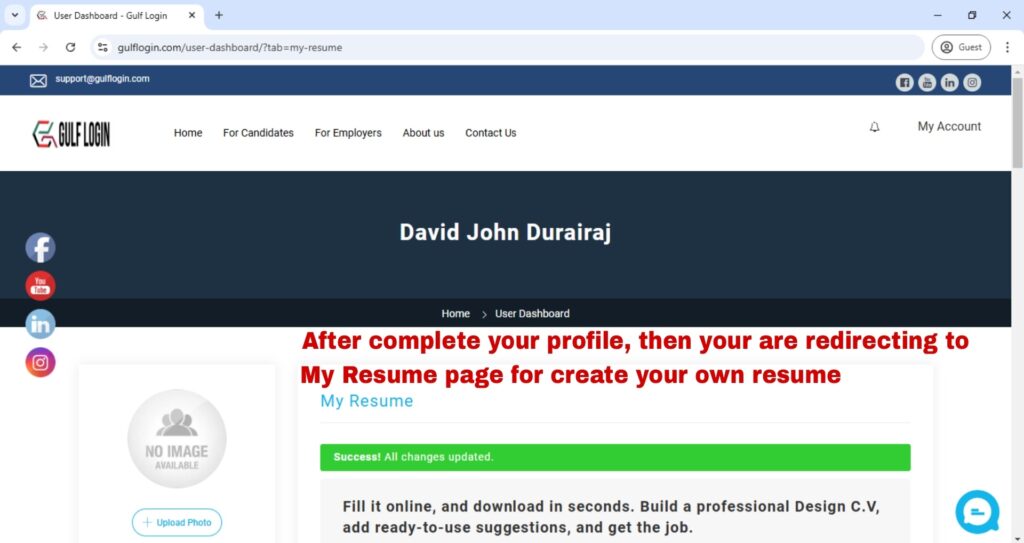
After you click this Save Settings button, then your profile information is successfully saved. Now you are redirecting to My Resume page for create your own free resume.
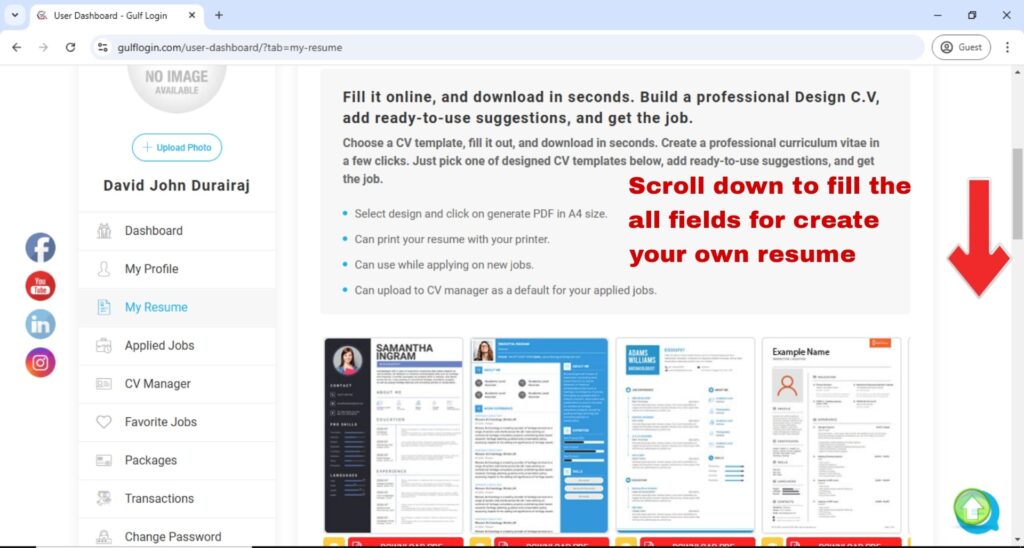
Then scroll down to fill the all fields for create your own free resume.
Step 7 : Scroll down to fill the all fields for create your own free resume.
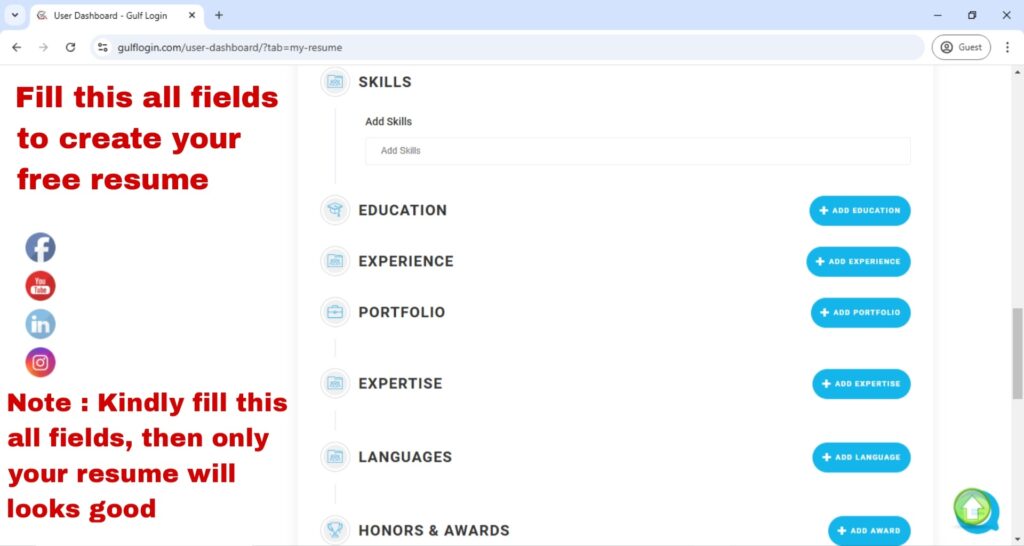
After you scrolling down, then fill the all fields for create your own free resume.
Note : You should fill this all fields, then only your resume will looks good.
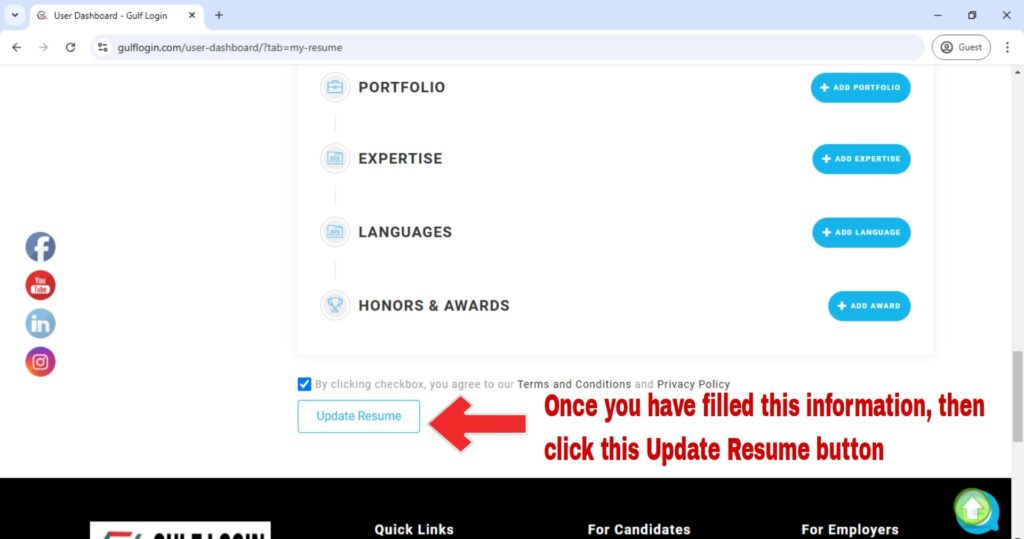
After filled this all fields then click this Update Resume button to save your information.
Step 8 : Click this Update Resume button to save your information.
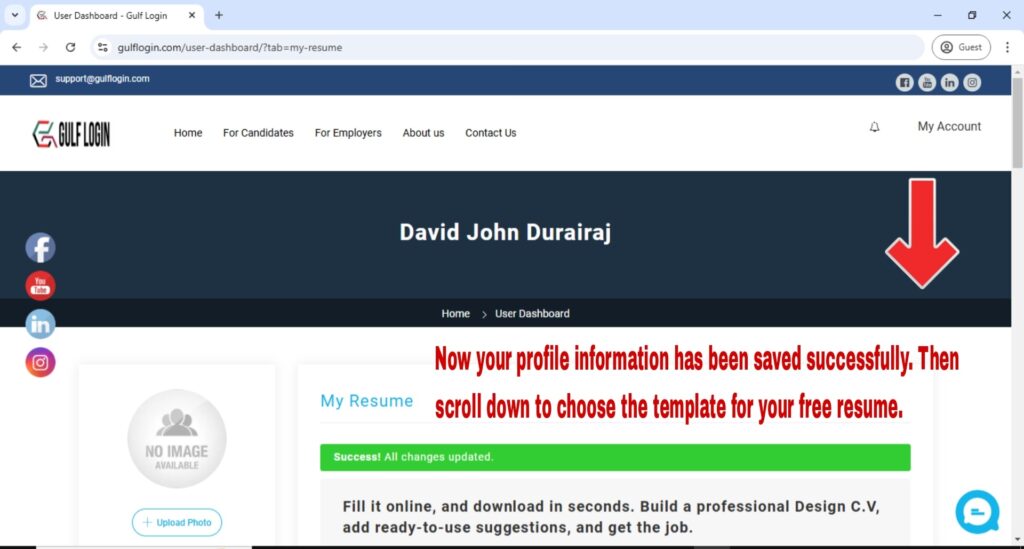
After you click this Update Resume button, now your profile information has been successfully saved. So, then scroll down to choose the template for your free resume.
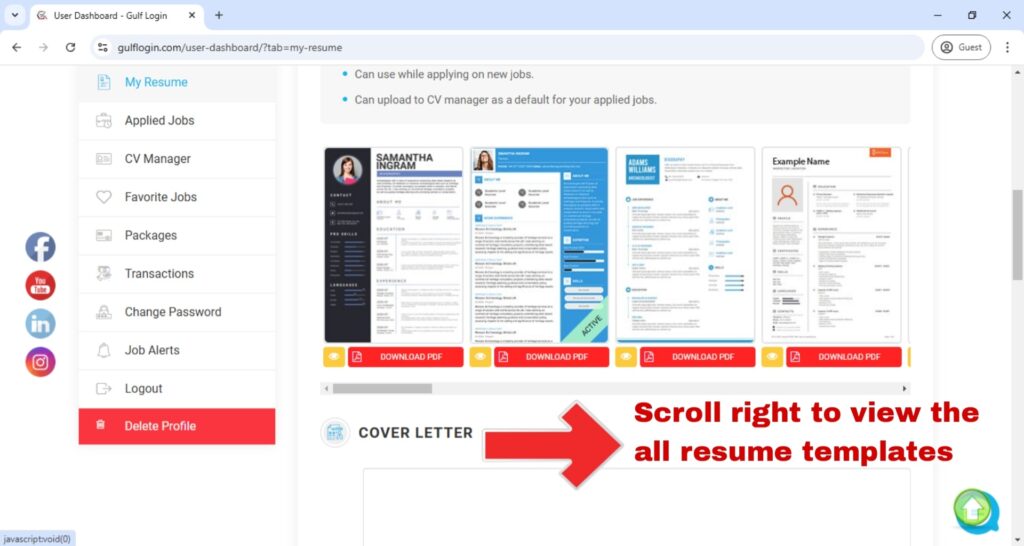
Then scroll right to view our all free resume templates.
Step 9 : Scroll right to view our all free resume templates.
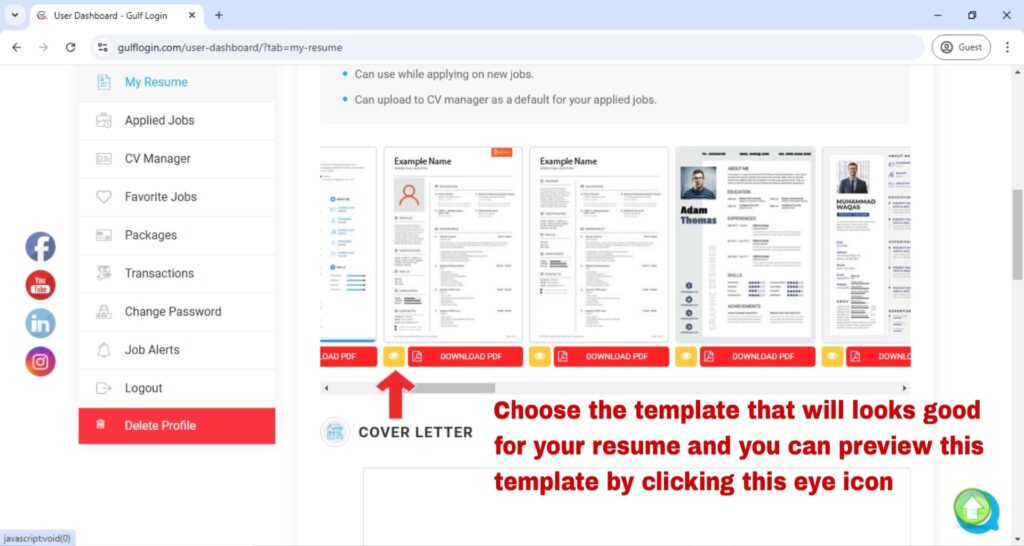
After you scrolling right to view our all free resume templates, then choose the template that will looks good for your resume and you can preview this template by clicking this eye icon.
After preview our all free resume templates, then choose the template for your free resume.
Step 10 : Choose the template for your free resume.
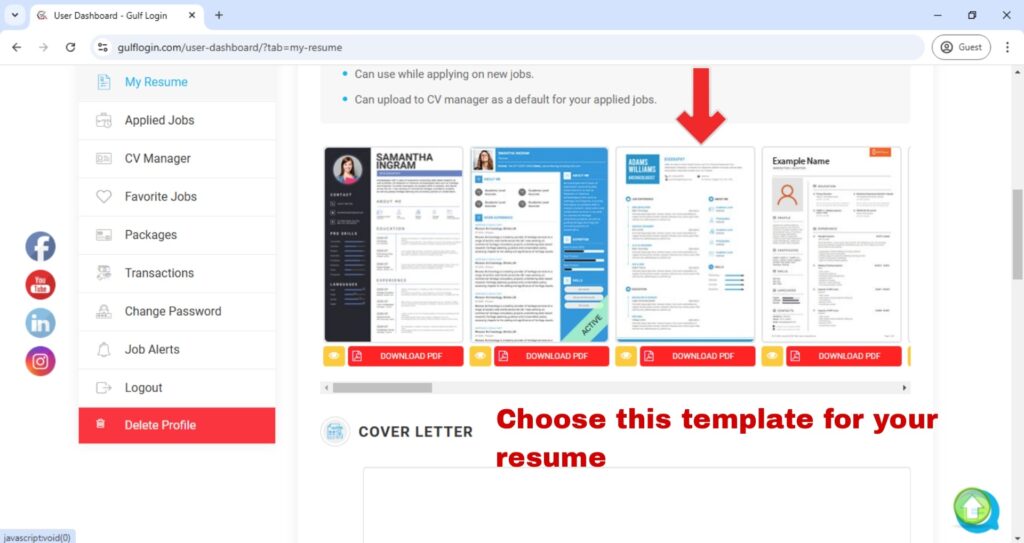
After you choose the template, then it will be marked as the ACTIVE resume template.
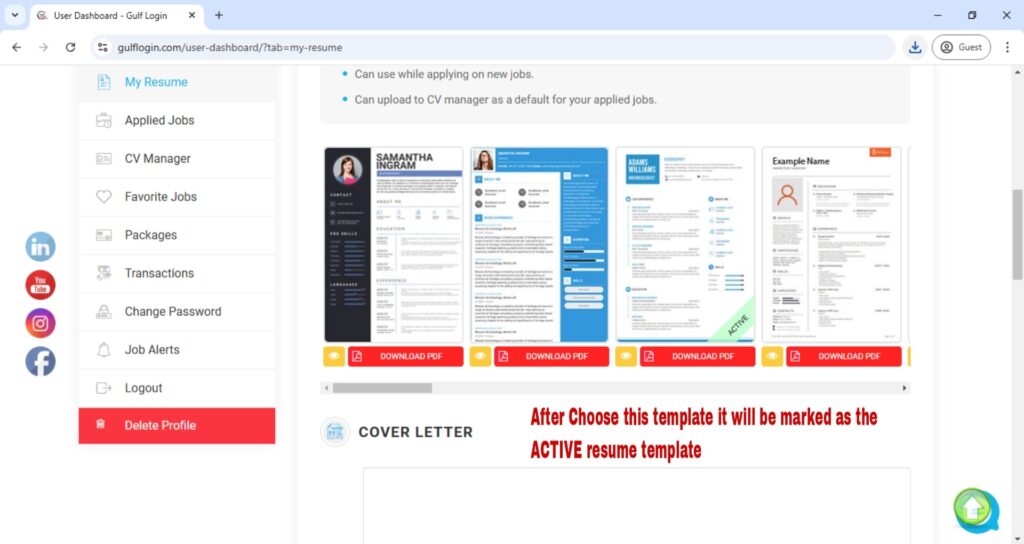
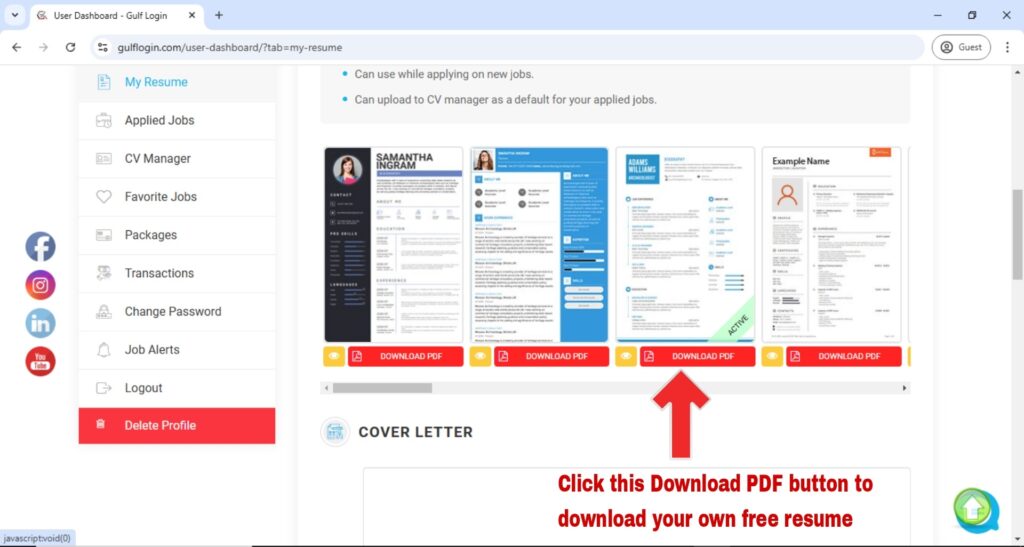
After you choose the template for your free resume, then click the Download PDF button to download your own free resume.
Step 11 : Click the Download PDF button to download your own free resume.
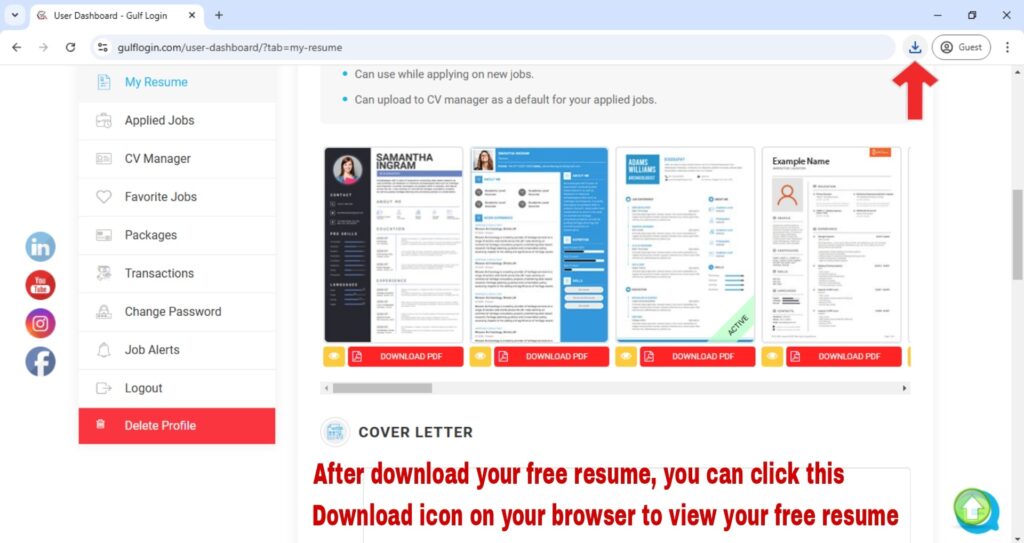
After download your free resume, you can click the Downloads icon on your browser to view your free resume.
After download your free resume, then click the CV Manager menu link on your candidate dashboard to upload your free resume.
Step 12 : Click the CV Manager menu link on your candidate dashboard to upload your free resume.
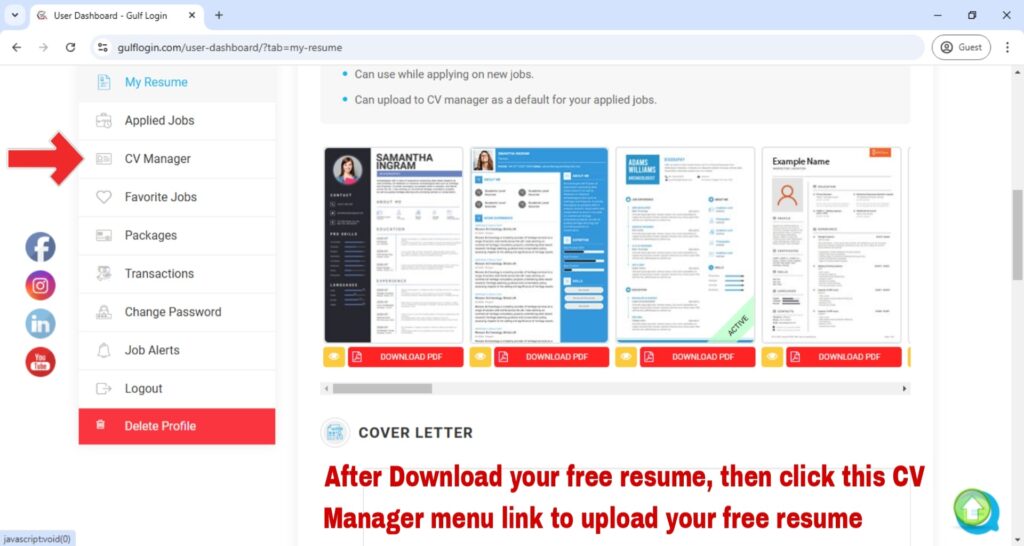
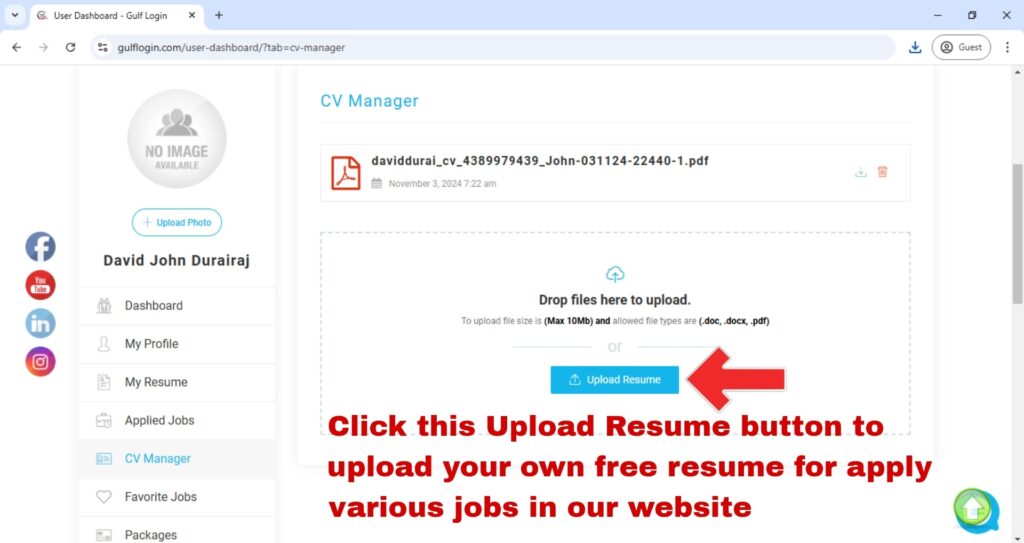
After you click the CV Manager menu link, then click this Upload Button to upload your free resume for applying various jobs in our website.
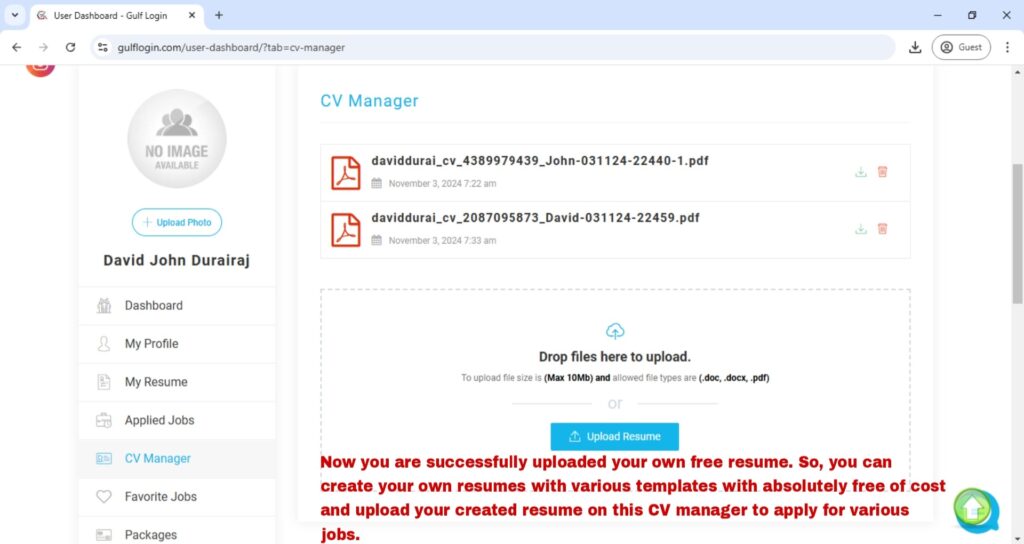
Now you are successfully uploaded your own free resume. So, you can create your own resume with various templates with absolutely free of cost and upload your created resume on this CV Manager to apply for various jobs.
Thanks for reading our resume builder guide for desktop users.
If you have any queries, Contact us :
Through our support@gulflogin.com mail
Through our Contact Us page